How to Automate Facebook Group Posts from Your RSS Feed
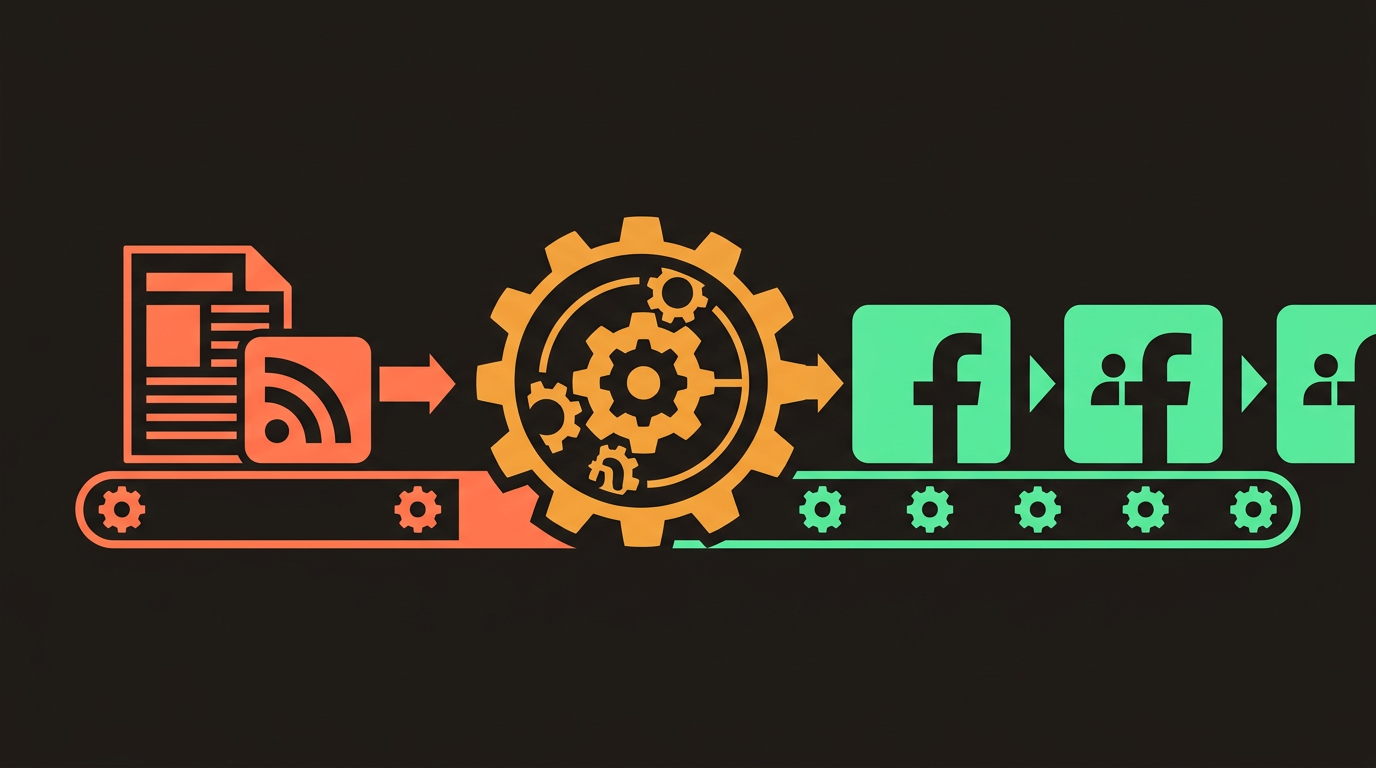
RSS feed integration lets NinjaPoster monitor your blog, podcast, or YouTube channel's RSS feed and automatically post to your Facebook groups whenever new content is published. You set it up once: connect your RSS feed URL, choose which groups to post to, set your delay settings, and NinjaPoster handles distribution every time you publish. No manual steps needed after initial setup.
Content creators and bloggers have a specific problem that general automation tools don’t solve well: they publish on an unpredictable schedule, and every new piece of content needs to be pushed to their Facebook groups manually.
A podcast episode drops on Tuesday morning. A blog post goes live Thursday afternoon. A YouTube video publishes whenever the upload finishes. Every time, someone has to notice the content is live, write a post about it, and distribute it to groups. If that person is you, it’s another task in an already full schedule.
RSS feed integration removes that task entirely. The moment your content goes live, NinjaPoster detects it and posts to your groups automatically. This guide covers how it works, how to set it up, and how to configure it for the best results.
How RSS Feed Integration Works
RSS (Really Simple Syndication) is a standard format that almost every publishing platform generates automatically. Your blog has an RSS feed. Your podcast has one. Your YouTube channel has one. These feeds are XML files that list your most recent content in a machine-readable format, updating every time something new is published.
NinjaPoster polls your RSS feed on a regular interval. When it detects a new item that wasn’t in the previous check, it treats that as a trigger and creates a group posting campaign automatically. The full details of how this works are covered in the RSS feed to Facebook groups feature page.
The post it creates can pull information directly from the RSS item: the title of your content, the URL, your custom description template. You define the template once and every future post uses it, populated with the details from each new piece of content.
What RSS Feeds Are Available
Blog posts. WordPress, Ghost, Squarespace, Webflow, and virtually every other blogging platform generates an RSS feed automatically. Usually it’s yoursite.com/rss.xml or yoursite.com/feed.
Podcast episodes. Podcast hosting platforms (Buzzsprout, Libsyn, Anchor, Spotify for Podcasters) all generate RSS feeds. This is actually the core mechanism podcasts use to distribute to Apple Podcasts, Spotify, and other directories. The same feed works for NinjaPoster.
YouTube channels. YouTube generates an RSS feed for every channel at https://www.youtube.com/feeds/videos.xml?channel_id=YOUR_CHANNEL_ID. Replace the channel ID with yours and you have a valid RSS URL.
Any RSS-compatible source. News aggregators, product update feeds, anything that publishes an RSS or Atom feed works with the integration.
If you don't know your RSS feed URL, try adding /feed or /rss.xml to your domain. On WordPress sites it's almost always yoursite.com/feed. For Squarespace it's yoursite.com/blog?format=rss. Ghost uses yoursite.com/rss. If those don't work, add ?format=rss to your blog URL or check your platform's documentation for the feed URL format.
Setting Up RSS Automation in NinjaPoster
The setup process takes about 10 minutes once you have your RSS URL.
Step 1: Find and Verify Your RSS Feed
Paste your RSS URL into a browser tab. You should see XML code — a structured list of your recent posts. If you see that, the feed is working. If you see an error, the URL may be wrong.
Once verified, copy the URL. You’ll need it in NinjaPoster.
Step 2: Connect the Feed in NinjaPoster
In the NinjaPoster dashboard, go to RSS Feed settings and add your feed URL. NinjaPoster will immediately fetch the current feed and show you your recent content items. This confirms the connection is working.
You’ll also set the polling interval here — how often NinjaPoster checks for new content. Every 15-30 minutes is a reasonable default for most publishers.
Step 3: Write Your Post Template
This is where you configure what the Facebook group post will look like when triggered by new content. NinjaPoster supports variables that pull from the RSS item:
{title}— The title of your content{url}— The link to the content{description}— The RSS item’s description or excerpt{date}— The publication date
A simple template might look like this:
New {title} just went live.

{description}

Read the full post: {url}
For more variation, combine this with spintax:
{New post|Just published|Fresh content}: {title}

{description}

{Check it out here|Full post here|Read more}: {url}
Every new content item will generate a post using this template, automatically filled with the details of that specific piece. For more detail on how spintax works within templates like this, see the guide on using spintax for Facebook group posts.
Step 4: Select Your Target Groups
Choose which groups receive posts triggered by your RSS feed. This is usually a broadly relevant group list — every group where your content type is appropriate.
A food blogger might post to cooking groups, recipe communities, and foodie communities. A business coach might post to entrepreneur groups and freelancer communities. The key is matching the content type to the group’s topic. RSS posts that are clearly relevant to the group’s interest get engagement. Off-topic RSS posts get ignored or removed.
You can add multiple RSS feeds and assign different group lists to each. A business that runs a marketing blog and a technical blog can connect both feeds separately: marketing content goes to marketing groups, technical content goes to developer communities. The segmentation keeps content relevant to each audience.
Step 5: Configure Posting Settings
Apply the same safe posting settings you’d use for any campaign:
Delays. Set a delay of 60-120 seconds between posts to each group. The RSS trigger doesn’t mean you should post to 200 groups instantly. The same pacing rules apply.
Skip list. Groups that don’t allow external links should be excluded from RSS campaigns, since RSS posts almost always include a URL. Check your skip list settings before activating the feed.
Posting hours. Some RSS tools let you restrict when triggered posts are allowed to go out. Content that publishes at 3am doesn’t need to hit groups at 3am. Setting allowed posting hours (9am to 9pm, for example) queues the post until the window opens.
How Bloggers and Content Creators Use This
The RSS integration changes the economics of content creation. Instead of “publish, then manually distribute,” the workflow becomes “publish, distribution happens automatically.”
A blogger who publishes three posts per week used to spend 45-60 minutes per post distributing to groups. With RSS automation, that time goes to zero after the initial setup. This fits directly into the Facebook group marketing strategy of consistent, automated distribution at scale. The posts reach the same groups with the same frequency. The blogger spends that recovered time writing better content.
For podcasters, it solves a particularly painful problem: episode distribution. Podcast episodes take hours to produce. The last thing a podcaster wants to do after editing and uploading an episode is spend another 30 minutes copying the episode description into 50 Facebook groups. RSS automation handles it the moment the episode is live on the hosting platform.
| Content Type | Typical RSS Feed URL Pattern | Best Group Category |
|---|---|---|
| WordPress Blog | yoursite.com/feed | Niche-specific discussion groups |
| Ghost Blog | yoursite.com/rss | Niche-specific discussion groups |
| Podcast | From your hosting platform dashboard | Industry communities, topic-specific groups |
| YouTube Channel | youtube.com/feeds/videos.xml?channel_id=ID | Interest-based groups in video's topic |
| Squarespace Blog | yoursite.com/blog?format=rss | Niche-specific communities |
Common Issues and How to Fix Them
Feed not updating. If NinjaPoster isn’t detecting new posts, check that your RSS feed URL is correct and that the feed is actually updating. Some caching plugins on WordPress can delay feed updates by hours. Disable feed caching or set it to a short interval.
Posts missing images. RSS feeds sometimes include images in the feed item, sometimes don’t. If your posts include a featured image and you want it to appear in group posts, check whether your RSS feed includes the <media:content> or <enclosure> tag. WordPress with Yoast or RankMath typically includes these. If not, add an image to your NinjaPoster post template separately.
Getting flagged in groups. RSS posts that include the same URL format repeatedly, posted frequently, can get flagged as link spam in some groups. Vary your template text and consider whether a group’s culture is link-friendly before including it in your RSS distribution list.
Duplicate posts. If NinjaPoster is showing the same item multiple times, check whether your RSS feed is generating new GUIDs for existing posts when they’re updated. Minor edits to published posts shouldn’t trigger a new distribution round.
RSS posts almost always include a URL to your content. Many Facebook groups have rules against external links or require admin approval for posts containing links. Before adding any group to your RSS distribution list, verify their link policy. Groups that prohibit links should be excluded from RSS campaigns and used for engagement-only posts instead.
Beyond Blogs: Creative Uses for RSS Automation
RSS integration isn’t only for blog posts and podcast episodes. Some users connect it to:
Product update feeds. Some e-commerce platforms and SaaS tools generate RSS feeds for new products, restocks, or feature releases. Connect this to buy-sell groups and product-specific communities for automatic announcement distribution.
Event calendars. Some event platforms generate RSS feeds. New event announcements can be automatically pushed to relevant local groups.
News aggregators. If you curate news for your audience, connecting a curated feed to your groups lets you be the person who surfaces relevant news in your community, building authority without creating original content every time.
The common thread is anything with a reliable RSS output that produces content worth sharing with your groups. Once the feed is connected and the template is configured, the distribution runs without your involvement.
- RSS integration monitors your feed on a schedule and triggers a group posting campaign automatically when new content is detected.
- Every major publishing platform generates an RSS feed: WordPress, Ghost, Squarespace, podcast hosts, and YouTube channels all work natively.
- Post templates use variables like {title} and {url} pulled from each RSS item, so every post is populated automatically with the right content details.
- Combine RSS templates with spintax for variation so groups don't receive word-for-word identical posts when the same feed item distributes across many groups.
- Configure posting hours to prevent RSS triggers from sending posts at 3am when your group audience isn't active.
- Exclude groups with no-external-links policies from RSS campaigns. RSS posts almost always contain URLs.
- Multiple RSS feeds can run simultaneously with different group lists, enabling segmented distribution by content type and audience.
Related Reading
- How to Post to Multiple Facebook Groups at Once (2026 Guide)
- What Is Spintax and How to Use It for Facebook Group Posts
- Facebook Group Posting Rules: What Gets You Banned and How to Stay Safe
- The Facebook Group Marketing Strategy That Actually Works in 2026
- Facebook Group Posting Schedule: Best Times and Frequency for 2026
- How to Post Links, Images, and Videos to Multiple Facebook Groups
Ready to automate your Facebook group marketing?
NinjaPoster posts to hundreds of groups automatically — safely and organically. Start your 7-day trial today.